
Question is, how challenging is the code you’re going to create going to be?

For the Eighth prompt, we have Festive Challenge. What will you create?
I’m looking forward to seeing what you come up with today.
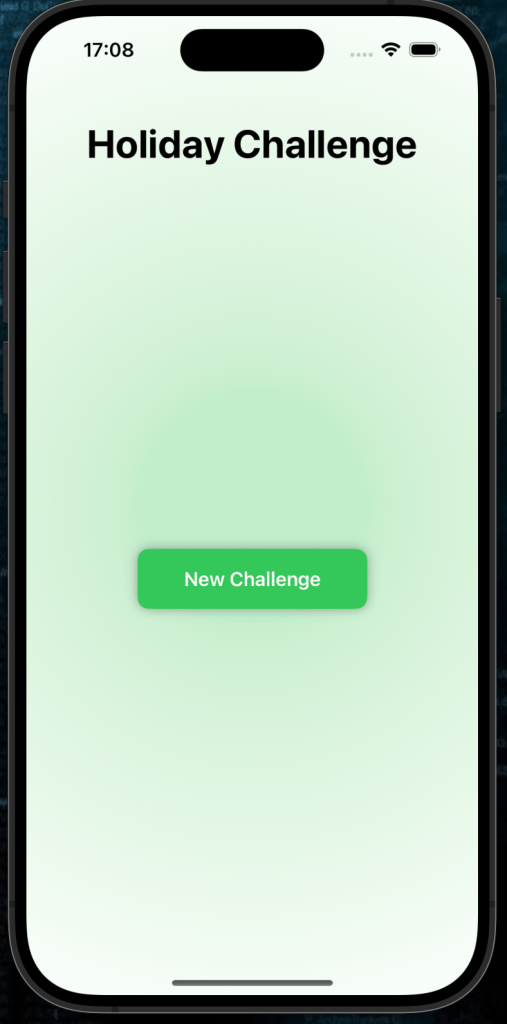
Bring festive fun into your day with a Holiday Challenge App! In this step-by-step guide, we’ll create an app where users can generate random holiday-themed challenges like “Bake holiday cookies” or “Build a snowman.” It’s a perfect way to add holiday cheer to your SwiftUI project.
What You’ll Learn
- Displaying dynamic content using
@State. - Adding animations to make your app more engaging.
- Styling UI components like buttons and text for a festive look.
- Using
RadialGradientto create a holiday-inspired background.
Getting Started
1. Set Up Your Project
You can find the sample project in the GitHub repository here
Create a new SwiftUI project in Xcode:
- Open Xcode and select Create a new project.
- Choose the App template, click Next.
- Enter your project name (e.g., “HolidayChallengeApp”), set the interface to SwiftUI, and click Create.
Step 1: Setting Up the Challenge List
We need a list of holiday challenges that users can randomly select from. We’ll define these challenges as a state variable.
Code Snippet: Challenge List
@State private var challenges = [
    "Bake holiday cookies",
    "Decorate a gingerbread house",
    "Write holiday cards to friends and family",
    "Watch a classic holiday movie",
    "Host a hot cocoa night",
    "Go caroling or play festive music",
    "Donate to a local charity",
    "Make DIY ornaments",
    "Build a snowman",
    "Have a holiday pajama day",
    "Make a festive wreath",
    "Host a holiday trivia game night",
    "Visit a holiday market or fair",
    "Create a holiday photo booth",
    "Make a list of New Year's resolutions"
]
Explanation:
- The
@Stateproperty wrapper lets SwiftUI monitor changes to thechallengesarray. - This array holds all the holiday-themed challenges that users can randomly select.
Step 2: Displaying the Challenge
We’ll use another @State variable, currentChallenge, to keep track of the selected challenge and display it to the user.
Code Snippet: Displaying the Current Challenge
@State private var currentChallenge = ""
@State private var showChallenge = false

if showChallenge {
    Text(currentChallenge)
        .font(.title)
        .fontWeight(.semibold)
        .multilineTextAlignment(.center)
        .padding()
        .transition(.scale.combined(with: .opacity))
        .animation(.spring(), value: showChallenge)
}
Explanation:
currentChallenge: Stores the current challenge to display.showChallenge: Controls whether the challenge text is visible.- Animation: A smooth scaling and fading effect is applied when the challenge text appears.
Step 3: Generating a New Challenge
Let’s create a function to randomly select a challenge from the challenges array and show it on the screen.
Code Snippet: Generate a Random Challenge
private func generateChallenge() {
    let newChallenge = challenges.randomElement() ?? "Have a festive day!"
    withAnimation {
        currentChallenge = newChallenge
        showChallenge = true
    }
}
Explanation:
randomElement(): Selects a random item from thechallengesarray.withAnimation: Ensures the challenge appears with an animation when updated.
Step 4: Adding a Button
We’ll add a button labeled “New Challenge” to let users generate challenges on demand.
Code Snippet: Challenge Button
Button(action: generateChallenge) {
    Text("New Challenge")
        .font(.headline)
        .foregroundColor(.white)
        .padding()
        .frame(maxWidth: 200)
        .background(Color.green)
        .cornerRadius(10)
        .shadow(radius: 5)
}
Explanation:
- Button Styling:
- A green background with rounded corners for a festive feel.
- A shadow effect to make the button stand out.
- Action: Calls
generateChallengewhen tapped.
Step 5: Festive Background
Let’s give our app a cheerful holiday look by adding a RadialGradient as the background.
Code Snippet: Festive Background
.background(
    RadialGradient(
        gradient: Gradient(colors: [Color.green.opacity(0.3), Color.white]),
        center: .center,
        startRadius: 100,
        endRadius: 500
    )
    .ignoresSafeArea()
)
Explanation:
- Radial Gradient: Creates a festive green-to-white gradient radiating from the center of the screen.
ignoresSafeArea: Ensures the background extends across the entire screen.
Step 6: Bringing It All Together
Here’s the complete code for your Holiday Challenge App:
import SwiftUI

struct ContentView: View {
    @State private var challenges = [
        "Bake holiday cookies",
        "Decorate a gingerbread house",
        "Write holiday cards to friends and family",
        "Watch a classic holiday movie",
        "Host a hot cocoa night",
        "Go caroling or play festive music",
        "Donate to a local charity",
        "Make DIY ornaments",
        "Build a snowman",
        "Have a holiday pajama day",
        "Make a festive wreath",
        "Host a holiday trivia game night",
        "Visit a holiday market or fair",
        "Create a holiday photo booth",
        "Make a list of New Year's resolutions"
    ]
    @State private var currentChallenge = ""
    @State private var showChallenge = false

    var body: some View {
        VStack(spacing: 30) {
            Text("Holiday Challenge")
                .font(.largeTitle)
                .fontWeight(.bold)
                .padding()

            Spacer()

            if showChallenge {
                Text(currentChallenge)
                    .font(.title)
                    .fontWeight(.semibold)
                    .multilineTextAlignment(.center)
                    .padding()
                    .transition(.scale.combined(with: .opacity))
                    .animation(.spring(), value: showChallenge)
            }

            Button(action: generateChallenge) {
                Text("New Challenge")
                    .font(.headline)
                    .foregroundColor(.white)
                    .padding()
                    .frame(maxWidth: 200)
                    .background(Color.green)
                    .cornerRadius(10)
                    .shadow(radius: 5)
            }

            Spacer()
        }
        .padding()
        .frame(maxWidth: .infinity)
        .background(
            RadialGradient(
                gradient: Gradient(colors: [Color.green.opacity(0.3), Color.white]),
                center: .center,
                startRadius: 100,
                endRadius: 500
            )
            .ignoresSafeArea()
        )
    }

    private func generateChallenge() {
        let newChallenge = challenges.randomElement() ?? "Have a festive day!"
        withAnimation {
            currentChallenge = newChallenge
            showChallenge = true
        }
    }
}
Step 7: Run Your App
Run the app on an iOS Simulator or device. Test the following features:
- Animations work nicely
- Challenges are random
- Button works
What’s Next?
Here are some ideas to expand your Holiday Challenge App:
- Track Completed Challenges: Add a button to mark challenges as completed and show a list of completed tasks.
- Share Challenges: Let users share challenges with friends via social media or messaging.
- Customize Challenges: Allow users to add their own challenges to the list.
🎉 Congratulations! You’ve built a festive app to spread holiday joy.

