
What do sparkles mean to you?

For the Ninth prompt, we have Sparkles. What will you create?
I’m looking forward to seeing what you come up with today.
Build a Christmas Lights Simulator in SwiftUI
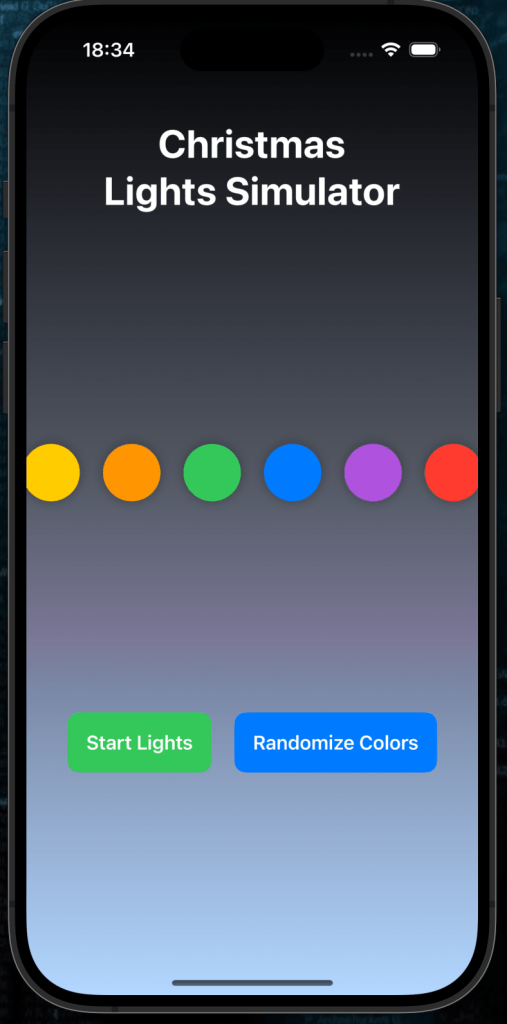
Light up your holiday season with this Christmas Lights Simulator App! In this tutorial, we’ll create a fun app where animated “light bulbs” change colors dynamically. Users can control the animation and even randomize the light colors for added excitement.
Getting Started
1. Set Up Your Project
You can find the sample project in the GitHub repository here
Create a new SwiftUI project in Xcode:
- Open Xcode and select Create a new project.
- Choose the App template, click Next.
- Enter your project name (e.g., “ChristmasLightsSimulator”), set the interface to SwiftUI, and click Create.
What You’ll Learn
- Displaying multiple items using SwiftUI’s
ForEach. - Animating elements with a timer.
- Adding user controls for starting, pausing, and randomizing lights.
- Styling UI elements with gradients, shadows, and dynamic colors.
Step 1: Creating the Light Bulb Layout
The app’s main focus is on six light bulbs displayed horizontally. Let’s create this layout using an HStack and style each light bulb as a colored circle.
Code Snippet: Light Bulbs
HStack(spacing: 20) {
    ForEach(0..<6) { index in
        Circle()
            .fill(lightColors[(activeColorIndex + index) % lightColors.count])
            .frame(width: 50, height: 50)
            .shadow(radius: 5)
    }
}
Explanation:
ForEach(0..<6): Creates six circles, one for each light bulb.- Dynamic Colors:
activeColorIndexensures the colors cycle through thelightColorsarray.- Each bulb’s color is determined by its index and the active color.
- Styling:
- The
Circle()is styled with ashadowfor depth and a fixed size (50x50).
Step 2: Adding Animation
To animate the lights, we’ll use a Timer to update the activeColorIndex periodically.
Code Snippet: Animation Logic
@State private var activeColorIndex = 0
@State private var isAnimating = false

private func startAnimation() {
    isAnimating.toggle()

    if isAnimating {
        Timer.scheduledTimer(withTimeInterval: 0.5, repeats: true) { timer in
            if !isAnimating {
                timer.invalidate()
            } else {
                activeColorIndex = (activeColorIndex + 1) % lightColors.count
            }
        }
    }
}
Explanation:
Timer:
- Updates the
activeColorIndexevery 0.5 seconds. - Cycles through the
lightColorsarray to change bulb colors.
- Toggle Animation:
isAnimatingcontrols whether the animation is running.- Pauses animation by invalidating the timer when
isAnimatingis set tofalse.
Step 3: Adding Buttons for User Control
We’ll provide two buttons:
- A start/pause button to control the animation.
- A randomize button to shuffle the bulb colors.
Code Snippet: Control Buttons
HStack(spacing: 20) {
    Button(action: startAnimation) {
        Text(isAnimating ? "Pause Lights" : "Start Lights")
            .font(.headline)
            .foregroundColor(.white)
            .padding()
            .background(isAnimating ? Color.red : Color.green)
            .cornerRadius(10)
    }

    Button(action: randomizeColors) {
        Text("Randomize Colors")
            .font(.headline)
            .foregroundColor(.white)
            .padding()
            .background(Color.blue)
            .cornerRadius(10)
    }
}
Explanation:
- Start/Pause Button:
- Toggles animation state with a label that updates based on
isAnimating. - Changes color to red when paused or green when running.
- Randomize Button:
- Calls
randomizeColors, which shuffles the colors inlightColors.
Step 4: Shuffling the Light Colors
Let’s add a function to randomize the colors of the lights.
Code Snippet: Randomizing Colors
@State private var lightColors: [Color] = [.red, .green, .blue, .yellow, .orange, .purple]

private func randomizeColors() {
    lightColors = lightColors.shuffled()
}
Explanation:
shuffled(): Randomizes the order of the colors in thelightColorsarray.- Dynamic Refresh: SwiftUI automatically refreshes the UI to reflect the updated color order.
Step 5: Styling the Background
A festive background enhances the holiday vibe. Let’s use a LinearGradient that blends dark and cool colors.
Code Snippet: Gradient Background
.background(
    LinearGradient(
        gradient: Gradient(colors: [Color.black, Color.blue.opacity(0.3)]),
        startPoint: .top,
        endPoint: .bottom
    )
    .ignoresSafeArea()
)
Explanation:
- Gradient:
- Starts with black at the top and transitions to a soft blue at the bottom.
- Provides a wintry, holiday-themed atmosphere.
ignoresSafeArea: Ensures the gradient fills the entire screen.
Step 6: Bringing It All Together
Here’s the complete code for your Christmas Lights Simulator App:
import SwiftUI

struct ContentView: View {
    @State private var lightColors: [Color] = [.red, .green, .blue, .yellow, .orange, .purple]
    @State private var activeColorIndex = 0
    @State private var isAnimating = false

    var body: some View {
        VStack(spacing: 40) {
            // Header
            Text("Christmas Lights Simulator")
                .font(.largeTitle)
                .foregroundStyle(.white)
                .multilineTextAlignment(.center)
                .fontWeight(.bold)
                .padding()

            Spacer()

            // Light Bulbs Display
            HStack(spacing: 20) {
                ForEach(0..<6) { index in
                    Circle()
                        .fill(lightColors[(activeColorIndex + index) % lightColors.count])
                        .frame(width: 50, height: 50)
                        .shadow(radius: 5)
                }
            }

            Spacer()

            // Control Buttons
            HStack(spacing: 20) {
                Button(action: startAnimation) {
                    Text(isAnimating ? "Pause Lights" : "Start Lights")
                        .font(.headline)
                        .foregroundColor(.white)
                        .padding()
                        .background(isAnimating ? Color.red : Color.green)
                        .cornerRadius(10)
                }

                Button(action: randomizeColors) {
                    Text("Randomize Colors")
                        .font(.headline)
                        .foregroundColor(.white)
                        .padding()
                        .background(Color.blue)
                        .cornerRadius(10)
                }
            }

            Spacer()
        }
        .padding()
        .background(
            LinearGradient(
                gradient: Gradient(colors: [Color.black, Color.blue.opacity(0.3)]),
                startPoint: .top,
                endPoint: .bottom
            )
            .ignoresSafeArea()
        )
        .onAppear(perform: startAnimation)
    }

    private func startAnimation() {
        isAnimating.toggle()

        if isAnimating {
            Timer.scheduledTimer(withTimeInterval: 0.5, repeats: true) { timer in
                if !isAnimating {
                    timer.invalidate()
                } else {
                    activeColorIndex = (activeColorIndex + 1) % lightColors.count
                }
            }
        }
    }

    private func randomizeColors() {
        lightColors = lightColors.shuffled()
    }
}
Step 7: Run Your App
Run the app on an iOS Simulator or device. Test the following features:
- Lights pause
- Colours randomize
- Lights animate
What’s Next?
Here are some ideas to make your app even more festive:
- Add More Colors: Include gradients or holiday-themed color combinations.
- Dynamic Speed Control: Add a slider to adjust the speed of the light transitions.
- Customizable Layout: Allow users to choose the number of light bulbs or their arrangement.
🎉 Congratulations! You’ve built a festive Christmas Lights Simulator App. 🎄

