Happy Christmas Eve.! Now most advent calendar’s are over, why not build a virtual one!
For the last prompt, we have Advent Calendar. What will you create?
I’m looking forward to seeing what you come up with today. it’s Christmas Eve so I’m going to include the tutorial with the prompt…so spoiler alert…don’t scroll past this point if you don’t want the tutorial & sample project just yet!
Build an Advent Calendar App in SwiftUI
Well now that most advent calendars are now over…why not make a digital version. In just a few lines of code, we can create more fun to last as long as we’d like.
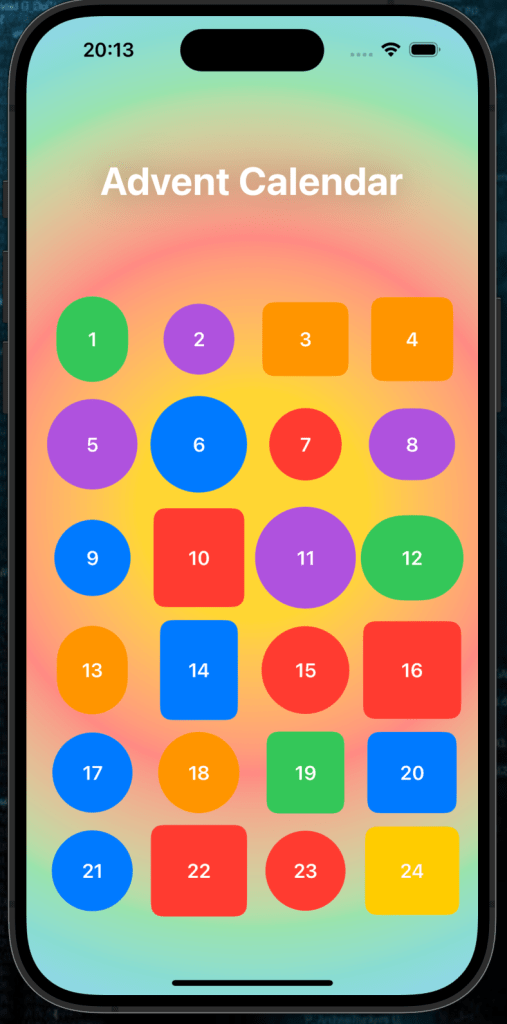
Celebrate the holiday season with an interactive Advent Calendar App! This app lets users tap on a date (from 1 to 24) to reveal a festive joke in a beautifully styled interface. Each date is displayed as a unique colored shape with random sizes for extra fun. For the last day, I have chosen not to over complicate too much as I know we’ll all be busy today. But still hopefully you get to learn or practice something new.
What You’ll Learn
- Using
ForEachto create dynamic grids. - Generating random shapes, colors, and sizes for unique designs.
- Displaying festive jokes with alerts.
- Adding polished UI elements like gradients, shadows, and text styles.
Getting Started
1. Set Up Your Project
You can find the sample project in the GitHub repository here
Create a new SwiftUI project in Xcode:
- Open Xcode and select Create a new project.
- Choose the App template, click Next.
- Enter your project name (e.g., “AdventCalendar”), set the interface to SwiftUI, and click Create.
Step 1: Define the Joke List
The app reveals a festive joke when a date is tapped. First, create a list of jokes stored in a constant array.
Code Snippet: Joke List
let jokes = [
    "Why was the snowman looking through the carrots? He was picking his nose!",
    "What do you call Santa when he takes a break? Santa Pause!",
    "Why did the turkey join the band? Because it had the drumsticks!",
    "What do elves learn in school? The elf-abet!",
    "Why is it so cold during Christmas? Because it’s Decembrrrr!",
    // Add more jokes here...
]
Explanation:
- The jokes are stored in an array, where each index corresponds to a specific date (1–24).
- When a date is tapped, the app fetches the joke at that index.
Step 2: Set Up State Variables
To manage the app’s dynamic elements (e.g., colors, shapes, and sizes), use @State properties.
Code Snippet: State Variables
@State private var colors: [Int: Color] = [:]
@State private var shapes: [Int: AnyShape] = [:]
@State private var sizes: [Int: CGSize] = [:]
@State private var isAlertVisible = false
@State private var selectedDay = 1
Explanation:
colors,shapes,sizes: Dictionaries to store random attributes for each date.isAlertVisible: Tracks whether the alert should be displayed.selectedDay: Stores the currently tapped date.
Step 3: Create the Advent Calendar Grid
Use a LazyVGrid to create a responsive grid layout displaying 24 dates. The assignedShape function will be created in just a moment.
Code Snippet: Grid Layout
LazyVGrid(columns: Array(repeating: GridItem(.flexible(), spacing: 10), count: 4), spacing: 10) {
    ForEach(1...24, id: \.self) { day in
        Button(action: {
            showAlert(for: day)
        }) {
            ZStack {
                assignedShape(for: day)
                    .foregroundColor(colors[day] ?? assignColor(for: day))
                    .frame(width: assignedSize(for: day).width, height: assignedSize(for: day).height)

                Text("\(day)")
                    .font(.headline)
                    .foregroundColor(.white)
            }
        }
    }
}
Explanation:
- Grid Structure:
LazyVGrid: Displays 24 buttons in a 4-column grid.- Each button corresponds to a date (1–24).
- Dynamic Shapes and Colors:
- Shapes, colors, and sizes are randomized for each date.
- Interactive Button:
- Tapping a button calls
showAlert(for:), displaying the joke for the selected date.
Step 4: Display a Joke with an Alert
When a date is tapped, show the corresponding joke using a SwiftUI Alert.
Code Snippet: Show Alert
private func showAlert(for day: Int) {
    selectedDay = day
    isAlertVisible = true
}

.alert(isPresented: $isAlertVisible) {
    Alert(
        title: Text("Day \(selectedDay)"),
        message: Text(jokes[selectedDay - 1]),
        dismissButton: .default(Text("Close"))
    )
}
Explanation:
- Track Selected Day:
- Updates
selectedDaywith the tapped date. - Sets
isAlertVisibletotrueto trigger the alert.
- Dynamic Message:
- Fetches the joke for the selected day using
selectedDay - 1(because array indices start at 0).
Step 5: Generate Random Shapes, Colors, and Sizes
Create helper functions to assign random shapes, colors, and sizes to each date.
Code Snippet: Random Shapes
private func assignedShape(for day: Int) -> some Shape {
    if let shape = shapes[day] {
        return shape
    }

    let newShape: AnyShape = [
        AnyShape(Circle()),
        AnyShape(RoundedRectangle(cornerRadius: 10)),
        AnyShape(Capsule())
    ][Int.random(in: 0..<3)]

    shapes[day] = newShape
    return newShape
}
Code Snippet: Random Colors
private func assignColor(for day: Int) -> Color {
    let color = [Color.red, Color.green, Color.blue, Color.purple, Color.orange, Color.yellow].randomElement() ?? .red
    colors[day] = color
    return color
}
Code Snippet: Random Sizes
private func assignedSize(for day: Int) -> CGSize {
    if let size = sizes[day] {
        return size
    }

    let newSize = CGSize(width: CGFloat.random(in: 60...90), height: CGFloat.random(in: 60...90))
    sizes[day] = newSize
    return newSize
}
Explanation:
- Shapes (
Circle,RoundedRectangle,Capsule) are randomly selected. - Colors and sizes are generated once per date and cached in their respective dictionaries.
Step 6: Add a Festive Background
Enhance the app’s appearance with a radial gradient background.
Code Snippet: Background Gradient
.background(
    RadialGradient(
        gradient: Gradient(colors: [
            Color.yellow.opacity(0.8),
            Color.red.opacity(0.6),
            Color.green.opacity(0.5),
            Color.blue.opacity(0.4)
        ]),
        center: .center,
        startRadius: 100,
        endRadius: 500
    )
    .ignoresSafeArea()
)
Explanation:
- Creates a festive gradient radiating from the center.
- Uses holiday-inspired colors like red, green, and yellow.
Complete Code
Here’s the final code for your Advent Calendar App:
import SwiftUI

struct ContentView: View {

     let jokes = [
        "Why was the snowman looking through the carrots? He was picking his nose!",
        "What do you call Santa when he takes a break? Santa Pause!",
        "Why did the turkey join the band? Because it had the drumsticks!",
        "What do elves learn in school? The elf-abet!",
        "Why is it so cold during Christmas? Because it’s Decembrrrr!",
        "What do you call a reindeer with bad manners? Rude-olph!",
        "What do snowmen eat for breakfast? Frosted flakes!",
        "Why did Santa go to music school? To improve his wrapping skills!",
        "What do you call an old snowman? Water!",
        "What’s a snowman’s favorite drink? Iced tea!",
        "Why don’t you ever see Santa in the hospital? Because he has private elf-care!",
        "What do you get when you cross a snowman and a dog? Frostbite!",
        "What does Santa suffer from if he gets stuck in a chimney? Claus-trophobia!",
        "Why are Christmas trees bad at knitting? They always drop their needles!",
        "What did one snowflake say to the other? You’re one of a kind!",
        "What do you call an obnoxious reindeer? Rude-olph!",
        "What’s every parent’s favorite Christmas carol? Silent Night!",
        "What do gingerbread men use to make their beds? Cookie sheets!",
        "What do Santa’s helpers use to measure? Santameters!",
        "Why do mummies like Christmas so much? Because of all the wrapping!",
        "What did the Christmas tree say to the ornament? Quit hanging around!",
        "How much did Santa pay for his sleigh? Nothing, it was on the house!",
        "What’s Santa’s favorite type of music? Wrap music!",
        "Why are Christmas trees so bad at sewing? They always drop their needles!"
    ]

    @State private var colors: [Int: Color] = [:]
    @State private var shapes: [Int: AnyShape] = [:]
    @State private var sizes: [Int: CGSize] = [:]
    @State private var isAlertVisible = false
    @State private var selectedDay = 1

    var body: some View {
        NavigationView {
            VStack {
                Spacer()

                Text("Advent Calendar")
                    .font(.largeTitle)
                    .fontWeight(.bold)
                    .foregroundStyle(.white)
                    .shadow(radius: 15)
                    .padding()

                Spacer()

                LazyVGrid(columns: Array(repeating: GridItem(.flexible(), spacing: 10), count: 4), spacing: 10) {
                    ForEach(1...24, id: \.self) { day in
                        Button(action: {
                            showAlert(for: day)
                        }) {
                            ZStack {
                                assignedShape(for: day)
                                    .foregroundColor(colors[day] ?? assignColor(for: day))
                                    .frame(width: assignedSize(for: day).width, height: assignedSize(for: day).height)

                                Text("\(day)")
                                    .font(.headline)
                                    .foregroundColor(.white)
                            }
                        }
                    }
                }
                .padding()
            }
            .alert(isPresented: $isAlertVisible) {
                Alert(
                    title: Text("Day \(selectedDay)"),
                    message: Text(jokes[selectedDay - 1]),
                    dismissButton: .default(Text("Close"))
                )
            }
            .background(
                RadialGradient(
                    gradient: Gradient(colors: [
                        Color.yellow.opacity(0.8),
                        Color.red.opacity(0.6),
                        Color.green.opacity(0.5),
                        Color.blue.opacity(0.4)
                    ]),
                    center: .center,
                    startRadius: 100,
                    endRadius: 500
                )
                .ignoresSafeArea()
            )
        }
    }

    private func showAlert(for day: Int) {
        selectedDay = day
        isAlertVisible = true
    }

    private func assignColor(for day: Int) -> Color {
        let color = [Color.red, Color.green, Color.blue, Color.purple, Color.orange, Color.yellow].randomElement() ?? .red
        colors[day] = color
        return color
    }

    private func assignedShape(for day: Int) -> some Shape {
        if let shape = shapes[day] {
            return shape
        }

        let newShape: AnyShape = [
            AnyShape(Circle()),
            AnyShape(RoundedRectangle(cornerRadius: 10)),
            AnyShape(Capsule

())
        ][Int.random(in: 0..<3)]

        shapes[day] = newShape
        return newShape
    }

    private func assignedSize(for day: Int) -> CGSize {
        if let size = sizes[day] {
            return size
        }

        let newSize = CGSize(width: CGFloat.random(in: 60...90), height: CGFloat.random(in: 60...90))
        sizes[day] = newSize
        return newSize
    }
}
Step 7: Run Your App
Run the app on an iOS Simulator or device. Test the following features:
- Each shape is randomly set & colored.
- Alert shows on each click of a door.
- You get a good laugh out of each joke.
What’s Next?
- Mark Completed Days: Add a visual indicator for days the user has already opened.
- Daily Rewards: Include festive images or messages behind each date.
- Animations: Add bounce or fade effects when tapping a date.
- Sounds: Festive sounds when a door is unlocked
🎉 Congratulations! You’ve built a fun and festive Advent Calendar App and with that, we come to the end of this year’s Swiftmas Challenge! Thank you so much for joining in each day. I hope you have enjoyed the challenge & trying new things. Have a very Merry Christmas and here’s to a brilliant 2025 ahead! 🎄

